
OpenMOSS · 5B DiT

MOSS-Image: try it, then build with it

An open-source text-to-image model from OpenMOSS with a 5B diffusion backbone, built for in-image text and layout control. Explore the official demo and learn how to run it locally.

Try the official MOSS-Image demo

Open on Hugging Face

Hosted by OpenMOSS on Hugging Face Spaces. Your prompts are submitted directly to that service. Availability, sign-in, quotas and queues are controlled by Hugging Face and the Space owner. This demo does not use your site credits.

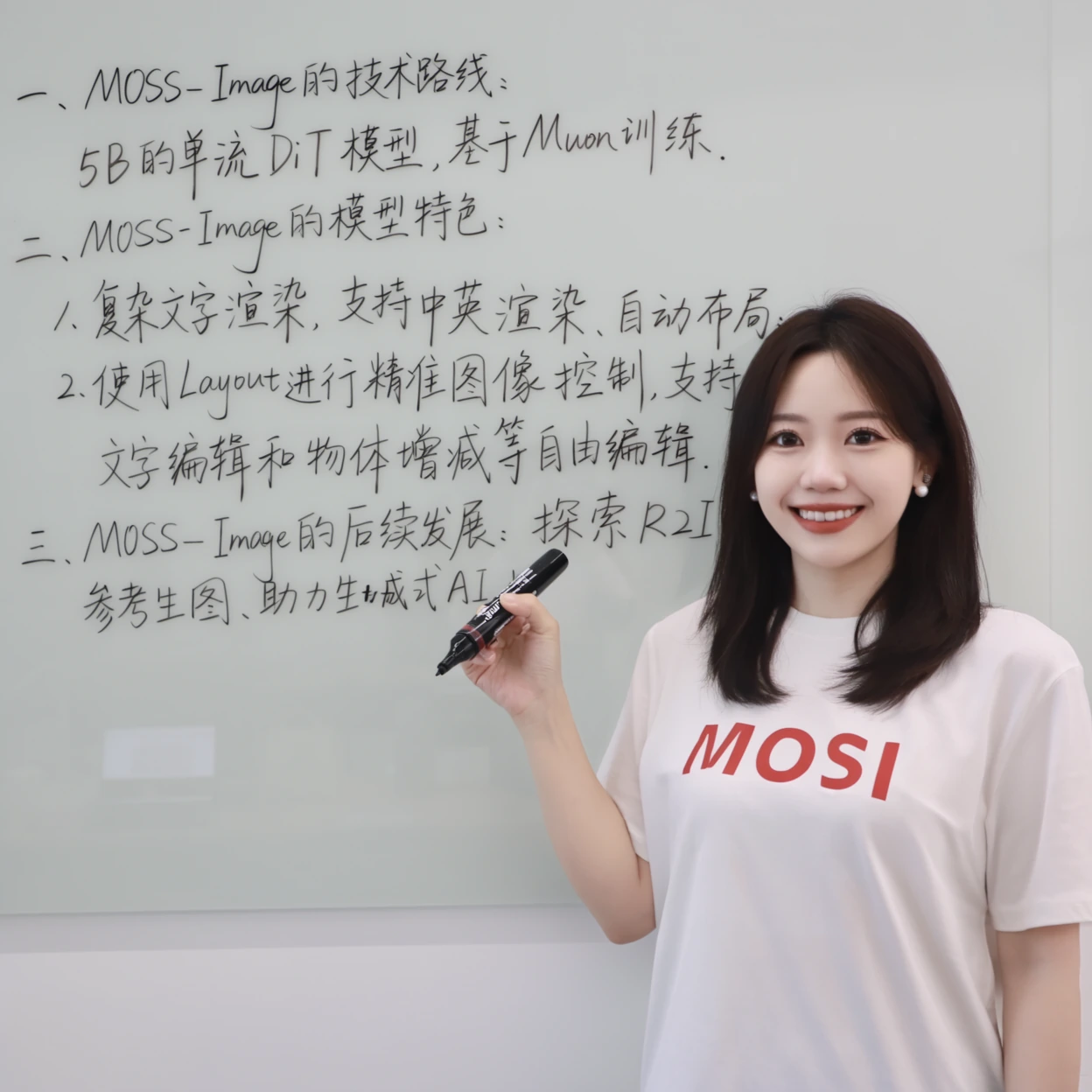
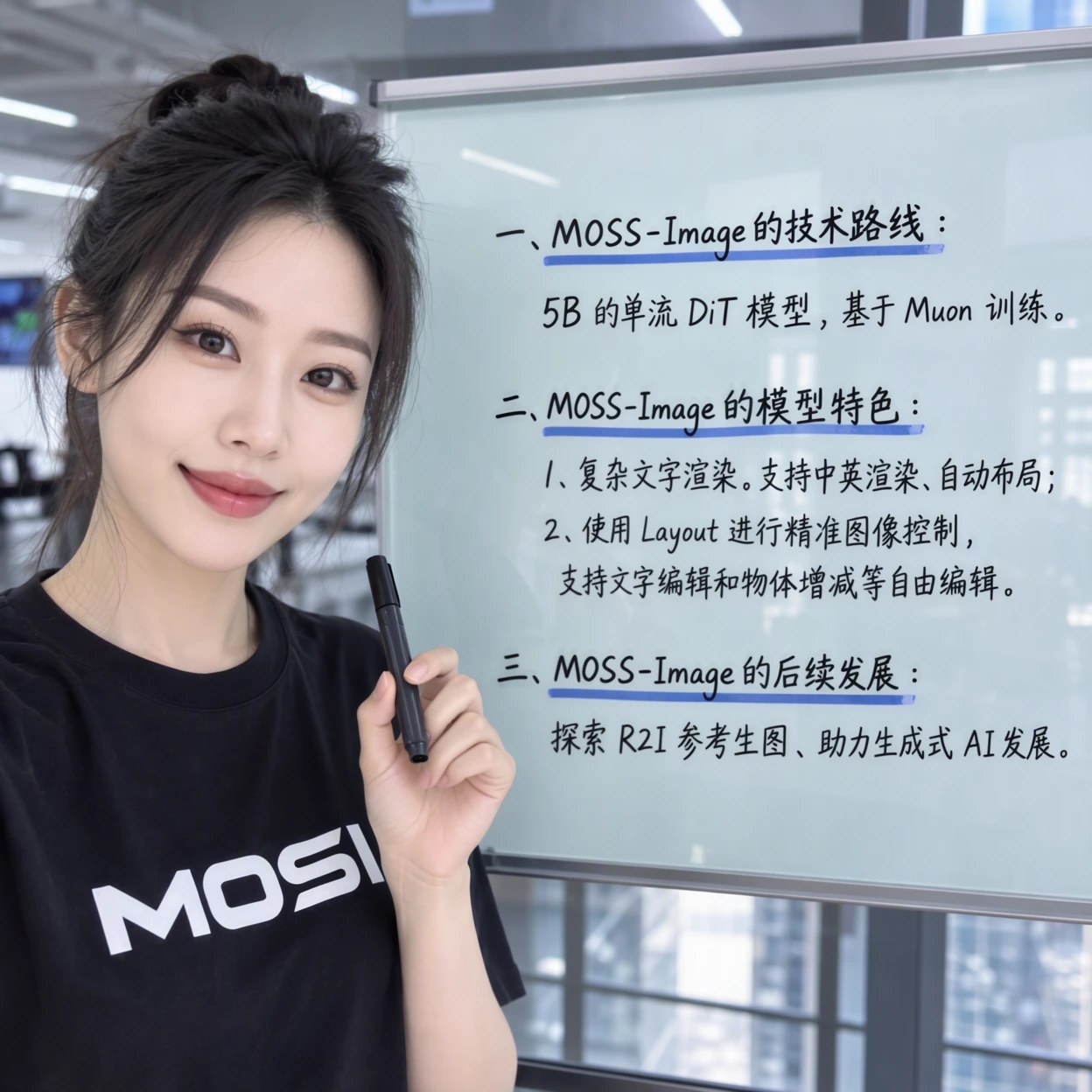
Official examples: Base vs. SFT

Base is the foundation checkpoint for experimentation and fine-tuning. SFT is fine-tuned on curated data; OpenMOSS shows clearer text grouping in this whiteboard comparison. These are official examples, not results generated on this site.

Official MOSS-Image-Base sample with a person and a text-filled whiteboard
MOSS-Image-Base
Official MOSS-Image-SFT sample with a person and organized whiteboard text
MOSS-Image-SFT
Source: OpenMOSS / MOSS-Image (Apache-2.0)

Prompts to try

These original starter prompts are not the generation records for the examples above. Copy one and paste it into the demo. Layout control is experimental; use the matching 1024 × 1024 canvas for the JSON example.

Text rendering · coffee poster

A minimalist coffee shop poster on a warm cream background. At the top, large dark green letters read "MORNING COFFEE". In the center, a ceramic cup of coffee with soft steam. At the bottom, smaller text reads "OPEN DAILY". Clear typography, generous spacing, flat editorial illustration.

Layout JSON · 1024 × 1024 poster

{
  "summary": {
    "meta": [
      "poster"
    ],
    "canvas": "single",
    "caption": "A cream poster with a green title and a ceramic coffee cup."
  },
  "items": [
    {
      "label": "text",
      "caption": "Large green title at the top.",
      "text": "MORNING COFFEE",
      "bbox": [
        -440,
        -440,
        -280,
        440
      ]
    },
    {
      "label": "object",
      "caption": "A ceramic coffee cup with steam, centered.",
      "bbox": [
        -160,
        -240,
        320,
        240
      ]
    }
  ],
  "bbox_coord_space": "abs_centralized",
  "bbox_format": "yxyx"
}

Run MOSS-Image locally

Use a Python environment and a compatible PyTorch / CUDA setup for your GPU. The 5B figure describes the diffusion backbone, not the full runtime memory requirement. Check upstream requirements for your hardware; if memory is insufficient, reduce resolution or use the official offload options.

Linux / macOS / WSL shell (a compatible GPU runtime is still required)

git clone https://github.com/OpenMOSS/MOSS-Image.git
cd MOSS-Image
python -m venv .venv
source .venv/bin/activate
pip install -r requirements.txt
pip install -e '.[ui]'
python gradio_app.py --model OpenMOSS-Team/MOSS-Image-Base

On Windows PowerShell, activate with .\.venv\Scripts\Activate.ps1 instead of source. The launch command below runs the Base Gradio UI locally.

Official setup and memory modes

ComfyUI: install nodes and import the workflow

This guide uses the official custom plugin with a complete Hugging Face / Diffusers directory. Do not mix it with workflows for separately repackaged component weights.

  1. 01

    Install the official plugin

    Clone the official repository, copy comfyui/moss-image/ into ComfyUI/custom_nodes/moss-image/, then restart ComfyUI. Alternatively, search for MOSS-Image in ComfyUI Manager.

  2. 02

    Download the full Base checkpoint

    Download MOSS-Image-Base to a local folder. Keep transformer/, text_encoder/, tokenizer/ and vae/ together. The loader expects a local directory, not a Hub repository name.

  3. 03

    Import the official workflow

    Save moss-image.json from the link below, drag it into ComfyUI, and set model_path on MOSS-Image HF Loader to the local model directory.

  4. 04

    Set prompts and run

    Edit positive and negative prompts, keep the initial settings below, and click Run. Verify model_path and restart ComfyUI if nodes are missing; lower resolution or adjust device/offload settings for memory errors.

Official Base workflow defaults

1024 × 1024 · 50 steps · CFG 3 · Shift 5 · Euler / sgm_uniform · negative-branch skip layer 22. These settings are for this Base workflow, not a universal SFT preset.

Sources checked: October 20, 2026. Follow upstream docs for later changes.

MOSS-Image questions

Keep editing your image