
01
Brush and Eraser
Paint irregular details with Brush and subtract accidental coverage with Eraser. Zoom helps around narrow gaps and edges.
MagicEraser Online
Upload a photo, paint over anything you do not want, and create a naturally cleaned image in moments.
JPG, PNG or WEBP · up to 15 MB
No signup required · images are stored temporarily
Match the selection method to the shape of the distraction, then combine tools when one pass is not enough.
01
Paint irregular details with Brush and subtract accidental coverage with Eraser. Zoom helps around narrow gaps and edges.
02
Cover signs, labels, captions and other straight-edged areas quickly with a filled rectangular selection.
03
Trace curved or uneven objects while avoiding more of the surrounding subject and background.

Remove an unwanted item while keeping the surrounding light, surfaces and composition naturally intact.
Private by design: anonymous images are temporary, not a permanent public gallery.
Mobile friendly controls work with mouse, touch and stylus through Pointer Events.
Brush, eraser, undo, redo, zoom and pan give you control over every mask.
MagicEraser Online helps you remove unwanted objects from photos without installing editing software. Use the browser-based AI magic eraser to clean product shots, travel photos and social images while keeping the result easy to compare and download.
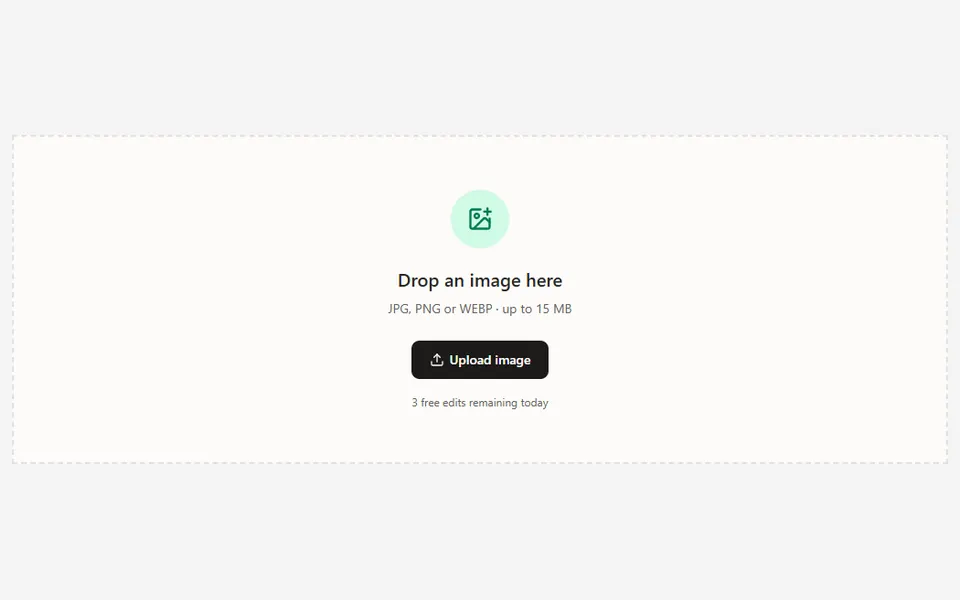
Choose a JPG, PNG or WEBP image. The editor keeps the original proportions while preparing a responsive working preview.
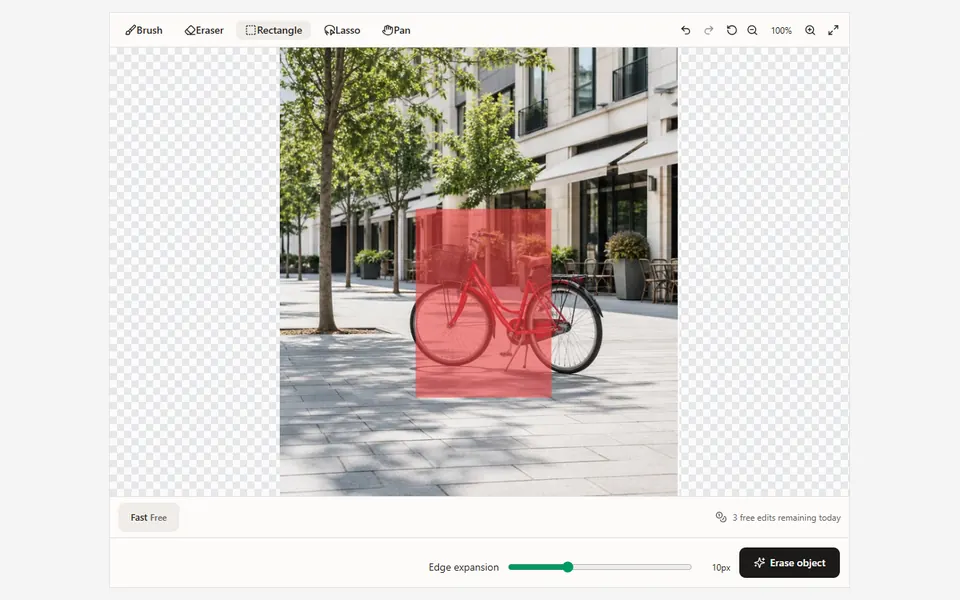
Select the distraction with Brush, Rectangle or Lasso, then zoom in and use Eraser, Undo or Redo to correct the boundary.
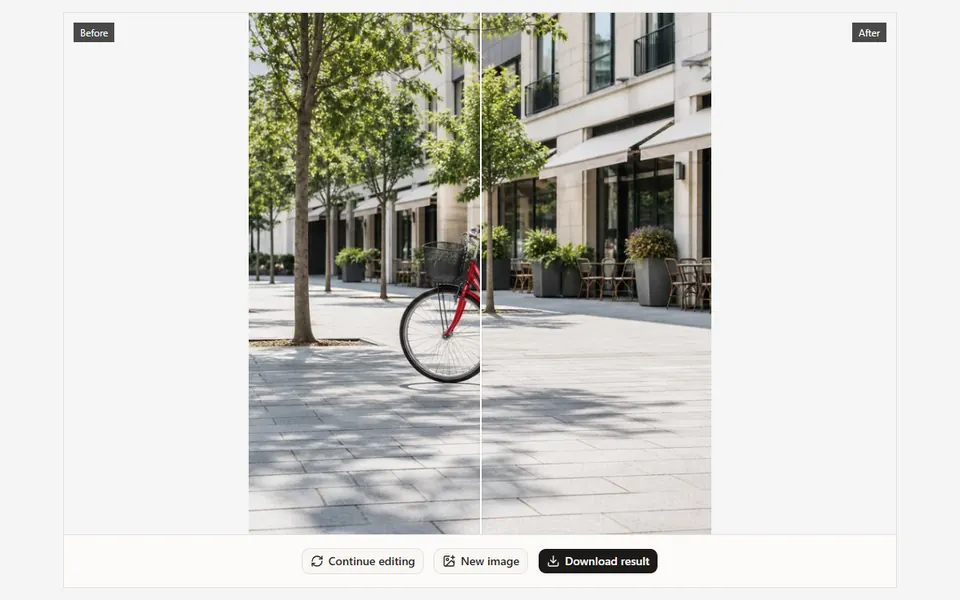
Set the edge expansion, run the AI cleanup, compare before and after, then download or continue editing the result.
Clean distractions from travel, product and social media photos.
Remove signs, cables, litter and small background objects.
Retouch a photo without installing complicated editing software.
Remove an unwanted item while keeping the surrounding light, surfaces and composition naturally intact.
01Include the full object and any attached shadow or reflection that should disappear.
02Start with the default 10 px edge expansion, then reduce it near fine details or increase it when an outline remains.
03Use Continue editing for a second cleanup pass. Signed-in users can also return to successful edits from History.
Step-by-step guide
Follow a practical workflow for choosing a mask tool, refining difficult edges and reviewing the reconstructed background.
Upload an image, paint over the distraction and let AI handle the difficult part.
Upload image