How to Remove Unwanted Objects from a Photo
A practical guide to masking distractions, preserving natural edges, and getting cleaner AI object removal results.
 MagicEraser Team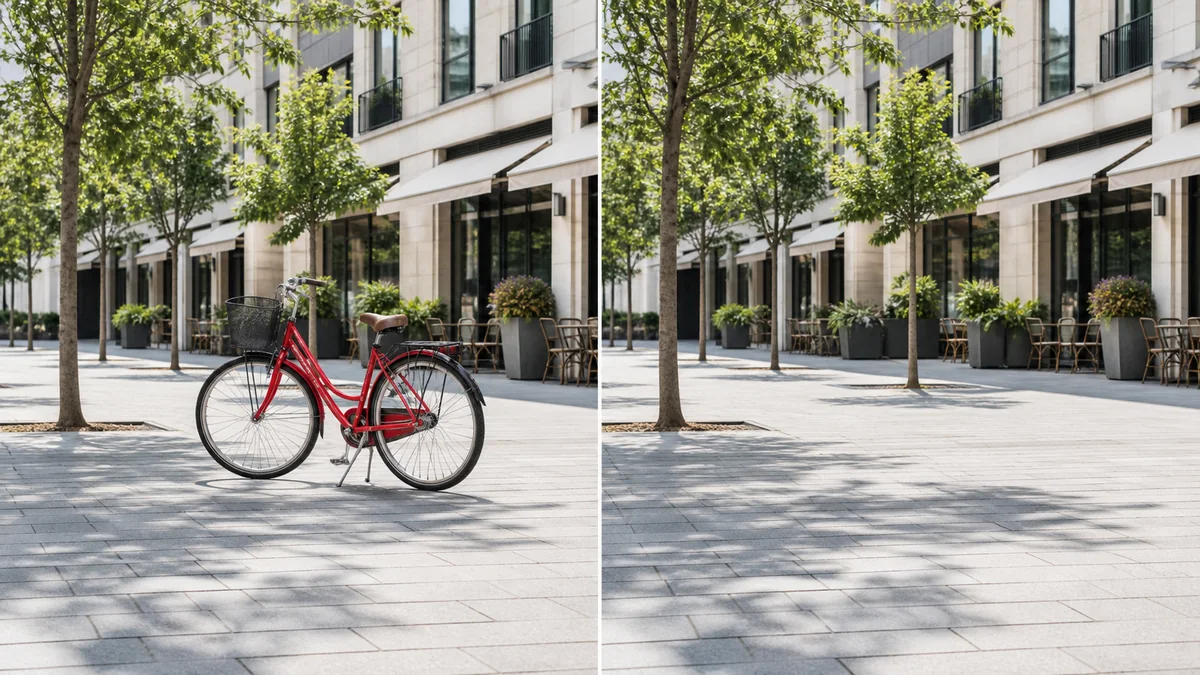
A good object removal starts before the AI runs. The quality of your mask, the amount of surrounding context, and the size of the object all affect how naturally the background can be reconstructed.
Choose a clear source image
Use the highest-quality JPG, PNG, or WEBP available. Photos with visible texture around the unwanted object give the model useful clues. Heavy compression, motion blur, and very small images can make edges harder to rebuild.
Paint slightly beyond the object
Upload your photo to MagicEraser Online and use the brush to cover the entire distraction. Include its shadow, reflection, and any small gaps between parts of the object. Extending the mask a few pixels beyond the visible edge usually prevents outlines from remaining.
Use Undo and Redo to correct strokes. Switch to the eraser when the mask reaches an area you want to preserve. On detailed images, zoom in and pan across the canvas instead of trying to finish everything at the default scale.
Keep the mask focused
A compact mask gives the AI more original context to work with. Avoid painting large empty areas unless they also need reconstruction. If several unrelated objects need removal, process them one at a time when possible.
Review the result carefully
After processing, drag the Before/After control across the image and inspect repeated patterns, straight edges, faces, text, and reflections. These areas are visually sensitive. If a small artifact remains, return to the editor, refine the mask, and run the removal again.
Download the finished image
When the result looks natural, choose Download result. Anonymous uploads and generated files are temporary, so save the finished image to your device rather than treating the editor as permanent storage.
The same workflow works for tourists, cables, signs, litter, furniture, and other distractions. Start with a careful mask, preserve as much context as possible, and let the AI solve one clear editing task at a time.